Raspberry Pi
citrasense-pi is a turnkey SD card image that transforms a Raspberry Pi into a dedicated telescope node. Flash it, power on, connect to WiFi from your phone, and the dashboard is live — no SSH, no terminal, no manual setup.
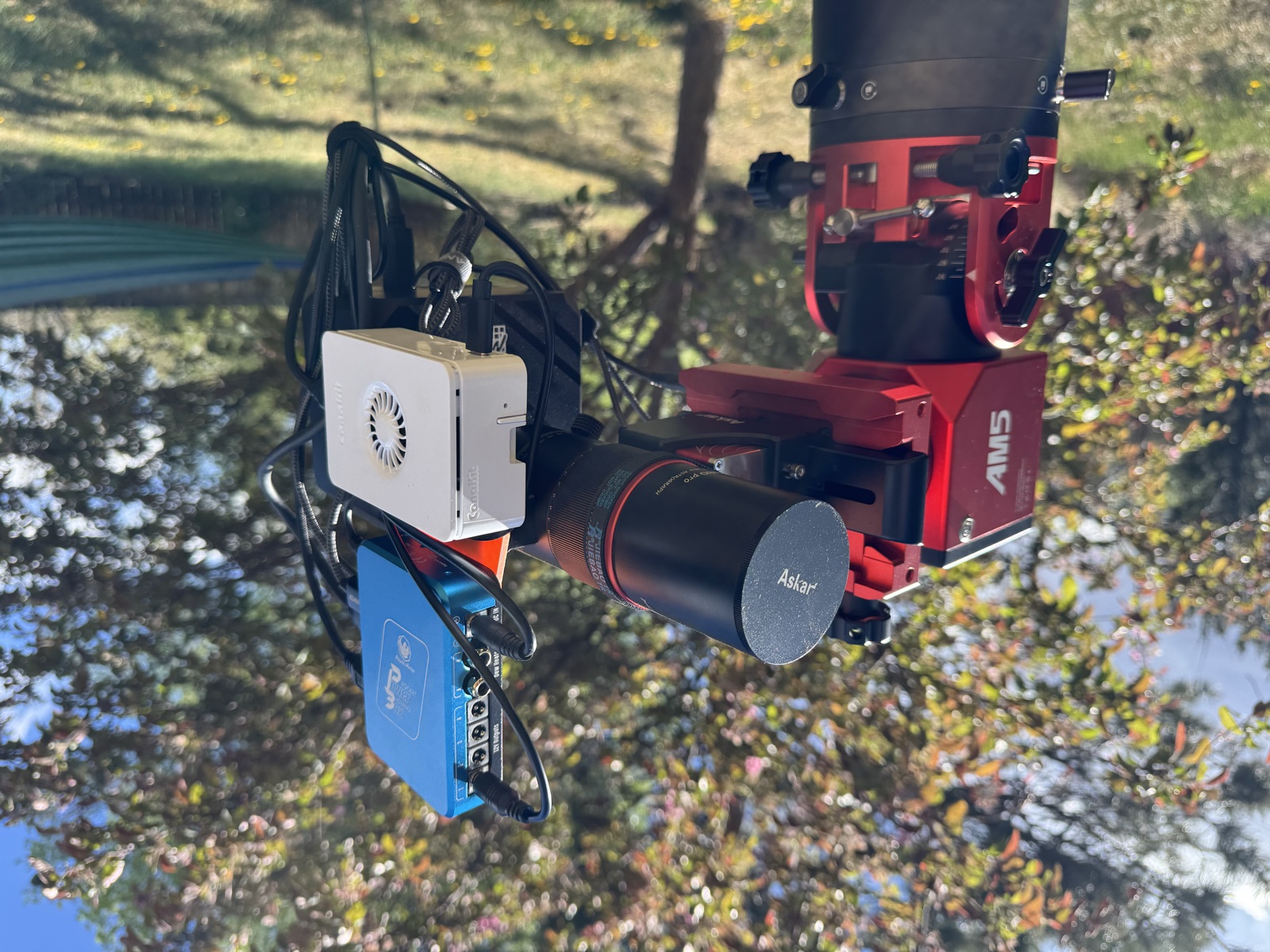
What’s on the image
| Component | Details |
|---|---|
| OS | Raspberry Pi OS Lite ARM64 (Debian Trixie) |
| CitraSense | Auto-starts on boot, dashboard on port 80 |
| INDI | Pre-installed drivers — CitraSense starts them as needed |
| GPS timing | Automatic detection; UART + PPS for Stratum 1 accuracy, USB GPS for position |
| WiFi | Captive portal for network setup, automatic hotspot fallback |
| SSH | Enabled on port 22 |
| User | citra / citra (sudo enabled) |
Supported models: Raspberry Pi 4 (2 GB+) and Raspberry Pi 5.
First boot
Your device gets a mission name
On first boot, the Pi picks a random name from famous space missions:
voyager, hubble, galileo, juno, kepler, pioneer, viking, luna, apollo, gemini, mercury, atlas, titan, orion, phoenix, spirit, curiosity
This name is permanent. It becomes the WiFi hotspot SSID, the network hostname, and how you find the device on your network. If yours draws voyager, everything is citrasense-voyager from here on out.
Connect to WiFi
If the Pi has no Ethernet connection, it creates a hotspot:
- On your phone or laptop, look for
citrasense-{name}in the WiFi list - Connect with password:
citra - A captive portal appears — pick your WiFi network and enter its password
- The Pi joins your network and the hotspot disappears
If your WiFi goes away — field use, power outage, router reboot — the Pi automatically brings the hotspot back so you can always reconnect.
Open the dashboard
Once you’re on the same network:
http://citrasense-{name}.local
For example, http://citrasense-voyager.local. The dashboard runs on port 80, so no port number is needed. From here the experience is identical to a desktop CitraSense install — connect to the Citra Space API, select your hardware, and you’re imaging.
SSH access
ssh citra@citrasense-{name}.local
Default password is citra. The login banner shows your device name and dashboard URL as a reminder.
GPS (optional)
The image comes pre-configured for GPS. Plug in a receiver and it works automatically.
| GPS type | Position | Timing |
|---|---|---|
| USB GPS | Yes | Internet NTP only (no improvement) |
| UART GPS (no PPS) | Yes | Coarse — NMEA timestamps via gpsd |
| UART GPS + PPS on GPIO 18 | Yes | Stratum 1, microsecond accuracy via chrony |
For best results in the field (no internet), use a UART GPS with PPS. The image configures gpsd, chrony, and the PPS overlay automatically — just wire PPS to GPIO 18.
Check GPS: cgps -s | Check time: chronyc sources -v |
Image versioning
Release filenames use dual versioning so you know exactly what’s on the card:
citrasense-pi-v0.4-cs1.3.0.img.xz
              ────  ───────
              │     └─ CitraSense version (telescope control software)
              └─ Pi image version (OS config, drivers, WiFi, GPS setup)
The build always installs the latest CitraSense release available at build time.
Troubleshooting
Can’t reach citrasense-{name}.local:
- Make sure your device supports mDNS (most do; older Windows may need Bonjour)
- Try the Pi’s IP address directly — check your router’s client list
- If you’ve forgotten the name, look at your WiFi list for the hotspot SSID
WiFi hotspot not appearing:
- Wait 1–2 minutes after power-on
- Make sure WiFi isn’t disabled on the Pi (shouldn’t be, but verify with Ethernet + SSH if needed)
- Try power cycling
Forgot the device name:
- The hotspot SSID shows the name — check your WiFi list
- Or connect via Ethernet and run
hostname